We all know it, but we’re just too afraid to say it: the volume mixer in Windows is horrendous.
Okay, maybe we’re not “too afraid to say it” but we all certainly know it! How Microsoft has allowed the volume mixer to remain so underdeveloped is a question for the ages, and one that vexes many a power-user of the platform. You could go with several aftermarket solutions to help in your struggles, but even they have limits: a multimedia keyboard with volume controls seems great until you realize it’s only master volume, and you can’t break out individual channels; the Xbox Game Bar (not technically aftermarket, but a little-known feature) is helpful until you have several audio sources and you have to scroll through them, only to be met with a mouse-controlled slider; an external mixer seems like the sure-fire way to go–plenty of options and finger-driven control–but they can be pricey as you increase the number of inputs and you’ll need a sound card or two to get all of the audio outs you need.
So what’s a user to do? In my specific situation (video content creation) I was in need of an external mixer with manual knobs or sliders, 3-4 audio channel controls, and something that would allow its settings to persist as programs opened, closed, and the PC rebooted. I started down the path of TC-Helicon’s GoXLR but with the 4-channel Mini starting at $200 USD I wasn’t too thrilled: my budget was about half of that for a piece of tech for my side-hobby. In the same vein the Elgato Stream Deck was $50 cheaper and I could map the controls in their app, but it lacked any physical knobs for quick, on-the-fly volume control. I felt my search was drawing to a close when I stumbled across the Korg nanoKONTROL2, a very small-profile USB audio controller that, when paired with another third-party app, could control 8 channels of audio for only $75 USD! Reviews were good, but the extra software needing to tie into the already necessary Korg software seemed unreliable, and as I continued further down the review trail I saw a few “It forgot these settings” or “I had to reconfigure this on reboot each time” which turned me off.
Scouring the internet I came across some makers creating their own volume mixers from an Arduino and the open-source software Deej which is, as its name sounds, the software for a hardware volume mixer that can be used on Windows and Linux. “I’m technical and handy!” I thought, my hopes rising as I started to research the device. I even had a 3D Printer to print a casing for it, but the further I dove into the subject the more complex and slightly daunting it became, not to mention the cost for parts to construct the device myself. Maybe one day, but for now I need a cheap solution that comes preassembled and ready to go. That’s not too much to ask for, right?

Finally, nestled deep in a Reddit thread about someone who built their own Deej-controlled mixer I found my answer: PCPanel. With its physical knobs/sliders, single software solution and ability to retain its settings this device appeared to be exactly what I was looking for. And apparently what everyone else was looking for because the company was sold out of all models!
Luckily I was able to place a pre-order for the “PCPanel – Mini”, a $65 USD device with four knobs that also had clickable button functionality. I poked around the site, watched an advert or two and then looked at what the internet said about the device. All data points led me to believe PCPanel was going to solve my problem, and solve it they did.
Arrival
After a preorder period of a few months I received an email that my product was being manufactured and should be available to ship soon. Not long after, I received a small package in the mail. Packed in a padded envelope the box had travelled well and looked nice with a few white graphics on a glossy black background. Opening the box the contents were arranged intelligently and compact, with little movement available to the product inside.
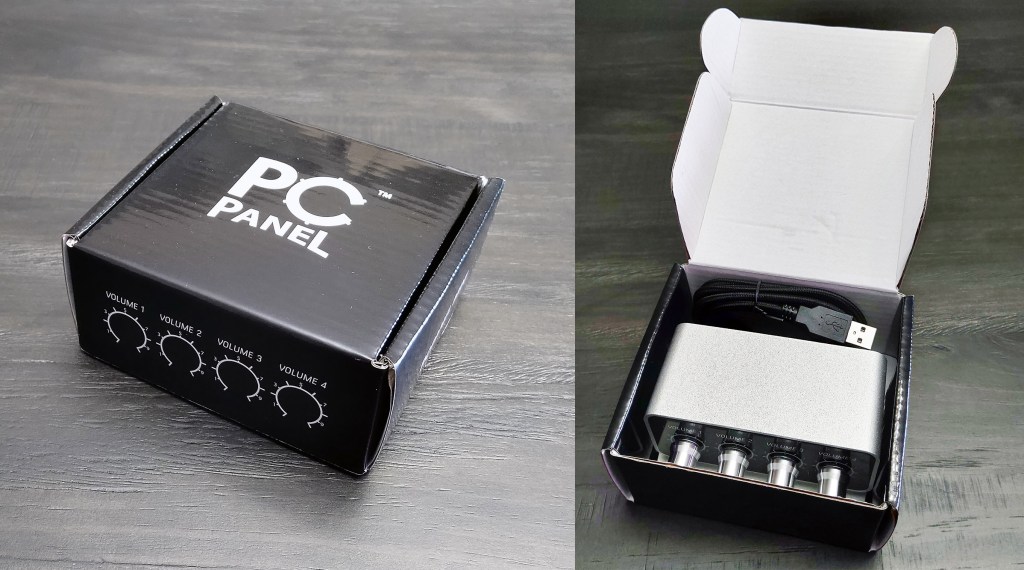
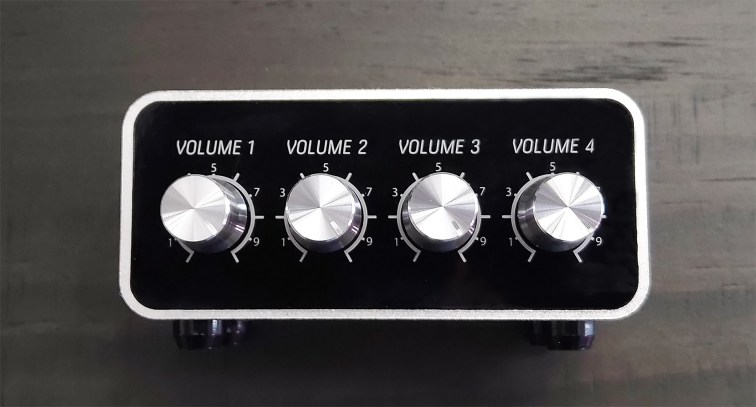
Unpacking the box I was able to get a good look at the PCPanel, its aluminum body cool to the touch, the knobs gliding smoothly on their mounts. The detachable, braided USB cable was flexible and sturdy, and I couldn’t find any molding deformities at either end. A small square of 3M VHB adhesive tape was included, I assume to attach the PCPanel to a table-top or atop another piece of audio equipment but for my use the four attached rubber feet would be enough.
As mentioned the PCPanel’s knobs also act as buttons, with a solid “click” felt when depressed. Noticing a potential flaw in the design, I was pleasantly reassured when a quick press of my thumb didn’t appear to twist the knob at all, the resistance of the knob tailored quite well to this function.
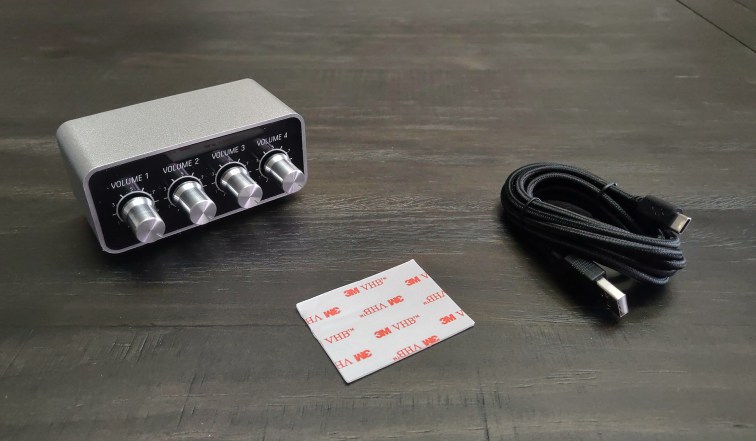
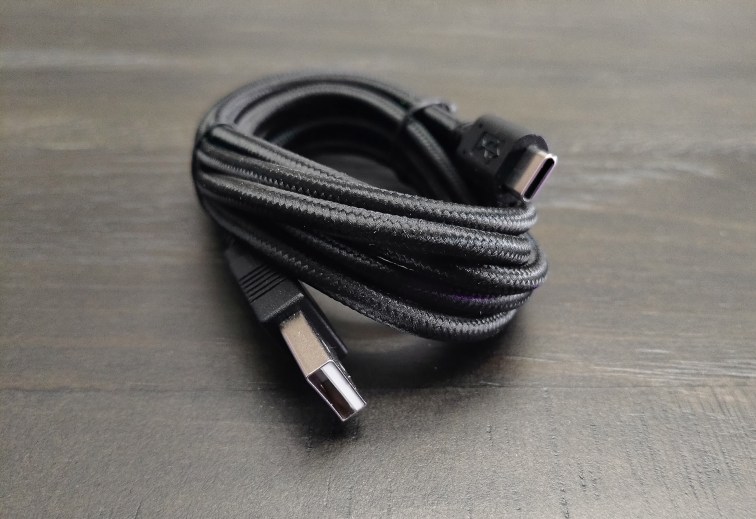
The braided USB cable was a nice touch as most “premium” devices tend to favor them these days. USB-A to USB-C, the cable connects to the PCPanel via its male USB-C connection allowing you to use either USB-A to USB-C cables or your own USB-C to USB-C cables depending on your setup. Very forward thinking of PCPanel!!
Functionality
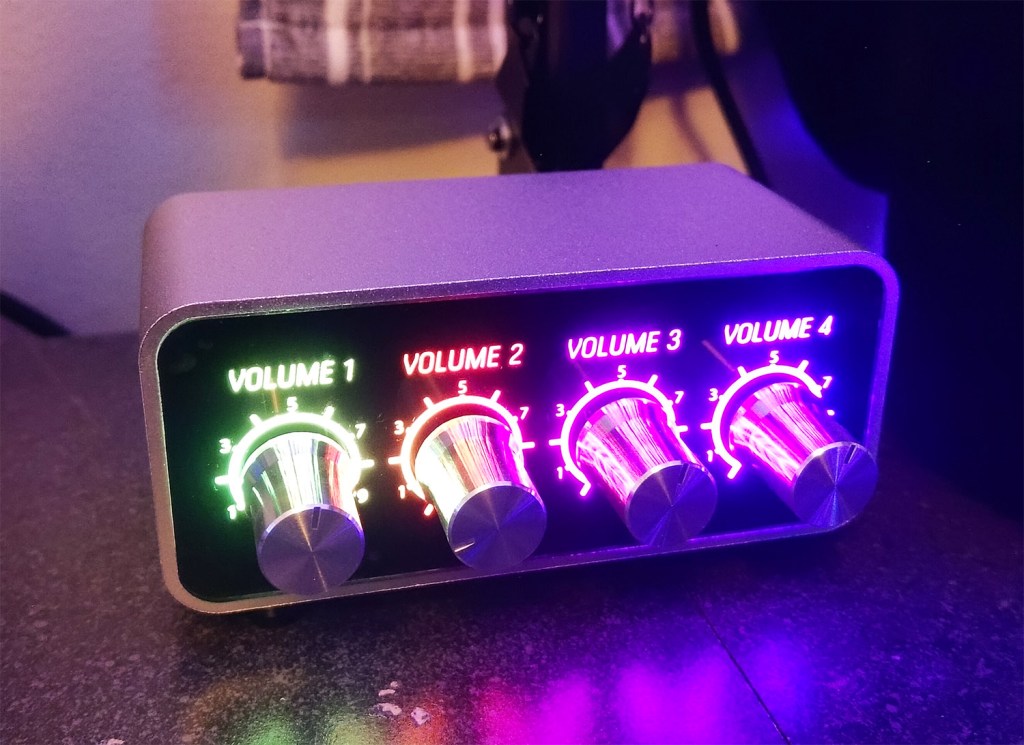
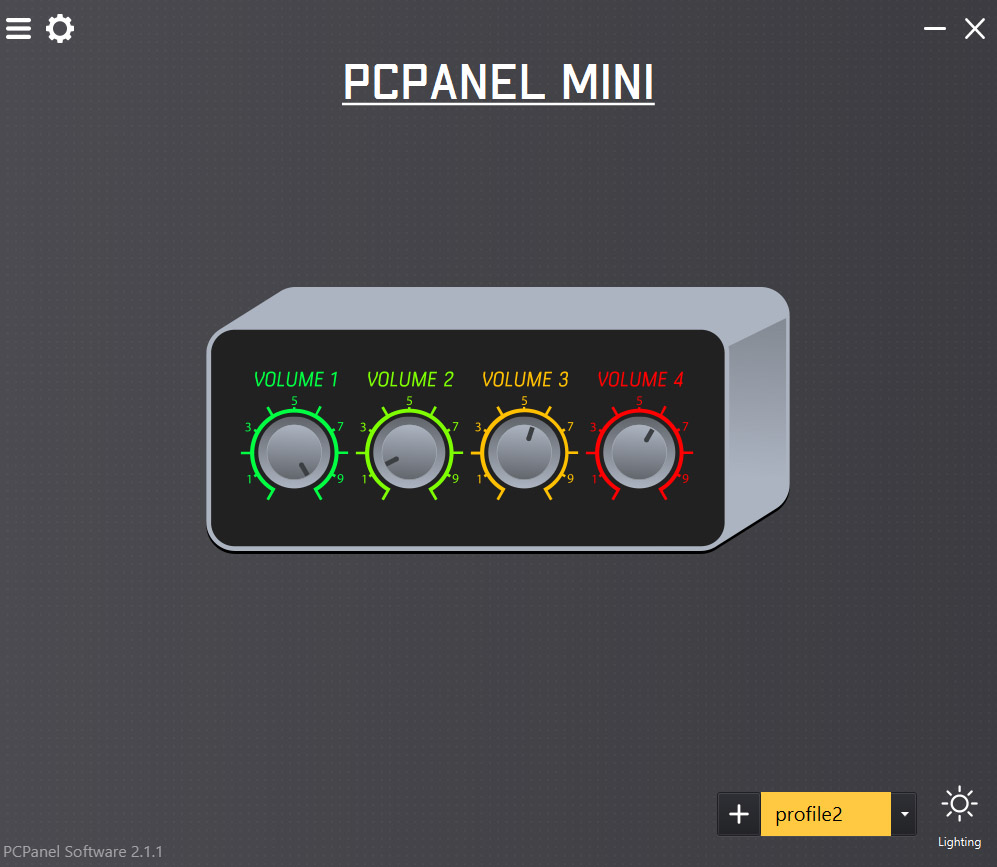
Plugging the device into my PC it lit up right away, the RGB lighting kicking off a very smooth rainbow wave effect despite how few LEDs it could logistically fit horizontally. I pulled down the controller software from the PCPanel website and installed it, suddenly greeted by a large virtual representation of my PCPanel device. Setup was very straightforward: just click on the dial you want to configure and there you go! There are three separate tabs for “Button”, “Dial”, and “Settings”, with settings being the scale the dial uses as you turn it. Program associations are per knob, per button/dial so you can set the dial to control the volume of an app while the button press mutes it, launches it, runs a shortcut, or launches/controls another app altogether! You could also set it to end a program, toggle to a different audio device, or even switch between your saved PCPanel profiles. Yep, you heard me right: you can set and save what appears to be an unlimited number of profiles for your PCPanel, meaning you can extrapolate your four volume knobs even further with a little profile-switching-button magic!
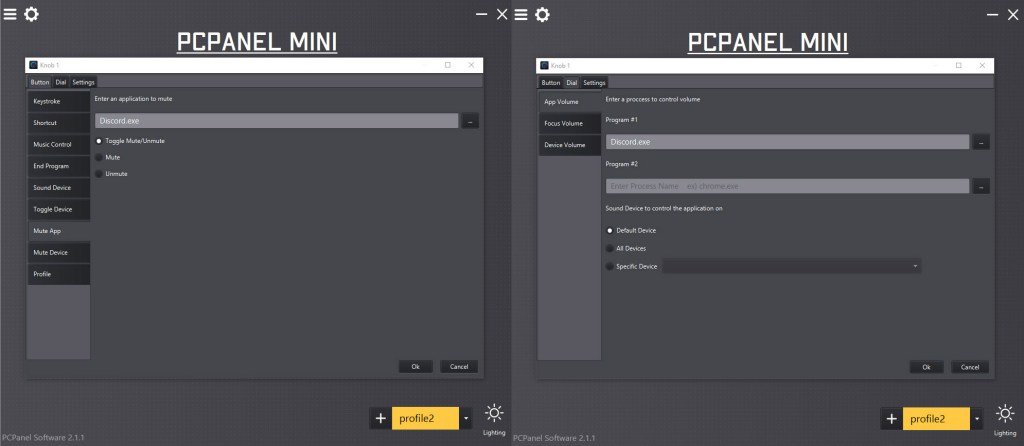
Assigning functions is incredibly intuitive and easy to navigate, with assigning applications as easy as picking from a list of running applications or by manually typing the path and .exe file you wish to control (I had to go this route with Winamp despite having it open and running).
I mapped each of my PCPanel’s knobs to a different application (Discord, Winamp, game volume, and Chrome) and over the past two months of use it hasn’t forgotten its configuration even once. This included two patch Tuesdays, numerous GeForce Experience and Razer Synapse updates, and countless opening/closing of the associated applications. Where Windows used to randomly reset my volume choices the PCPanel has kept them true time and time again. No more fiddling with audio levels when prepping for a stream: I can now load in knowing full well my audience won’t be accosted with deafening music or strain to hear a whisper-quiet voice.
Final Thoughts
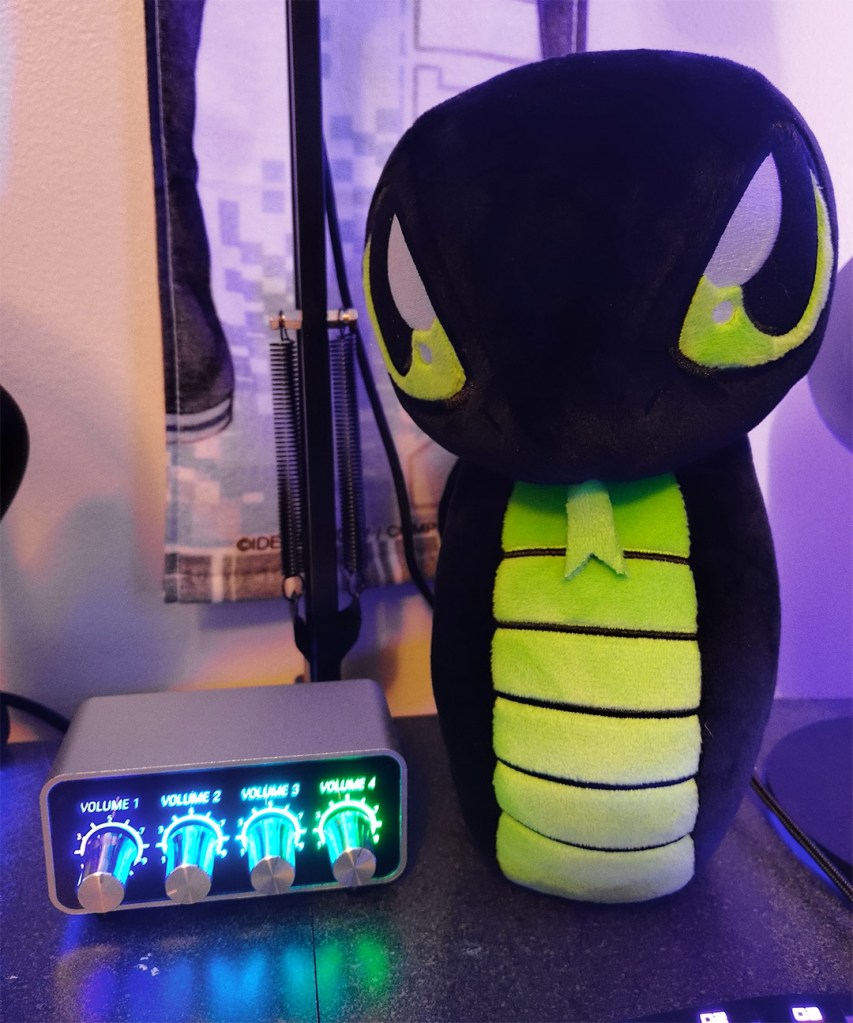
Overall I’m very pleased with my PCPanel Mini and I would absolutely recommend it to anyone looking for a small external mixer for internal sources. Falling under the $70 USD price point I can’t express how capable this little thing is, and despite having just 4 knobs the addition of profiles and multiple mappings to the same knob easily expand this small device’s flexibility. PCPanel hit all of my needs with the Mini: cheap, multiple inputs, and capable of retaining its config across restarts and updates. With all of my needs met, I foresee my PCPanel Mini having a permanent place on my desk for years to come.
 The Chasm
Leave a comment